

*Cube-Host– full cloud services!!
: Function WP_Styles::add was called incorrectly. The style with the handle "hello-elementor-child-style" was enqueued with dependencies that are not registered: hello-elementor-theme-style. Please see Debugging in WordPress for more information. (This message was added in version 6.9.1.) in /home/csrkub/domains/cube-vps.com/public_html/wp-includes/functions.php on line 6131
Notice: Function WP_Scripts::add was called incorrectly. The script with the handle "gpress-custom-js" was enqueued with dependencies that are not registered: gpress-siema. Please see Debugging in WordPress for more information. (This message was added in version 6.9.1.) in /home/csrkub/domains/cube-vps.com/public_html/wp-includes/functions.php on line 6131
*Cube-Host– full cloud services!!

Via Server Manager: Add roles and features → Role-based → your server → Web Server (IIS).
Select the minimum for static and basic websites:
If you need ASP.NET, add Application Development (.NET Extensibility, ASP.NET, ISAPI).
PowerShell equivalent:
					Install-WindowsFeature Web-Server, Web-Common-Http, Web-Default-Doc, Web-Http-Errors, `
  Web-Http-Logging, Web-Filtering, Web-Stat-Compression -IncludeManagementTools
# If necessary:
# Install-WindowsFeature Web-Asp-Net45, Web-Net-Ext45, Web-ISAPI-Ext, Web-ISAPI-Filter
Check http://localhost — the IIS start page should appear.
Open IIS Manager (InetMgr.exe) → select your server → Server Certificates.

In Actions, click Create Certificate Request…, fill in the Distinguished Name fields:
— Common Name — FQDN of the site (for example, example.ru or *.example.ru for wildcard);
— Organization/OU/City/State/Country — according to the requirements of the certification authority (CA).

Select a cryptographic provider and key length (Microsoft RSA SChannel and 2048+ bits are recommended).

Save the CSR to a file—it starts with —–BEGIN NEW CERTIFICATE REQUEST—–.
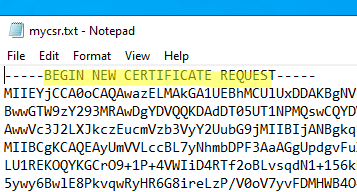
Send the CSR to your CA (commercial or corporate). If you are using AD CS, download the issued certificate from the CA web portal.

Alternative for testing: self-signed certificate via PowerShell New-SelfSignedCertificate. Suitable for test environments, but not for production sites.
Return to Server Certificates and click Complete Certificate Request… — specify the issued CER.

If you have CRT + KEY, first convert to PFX (a combined container with a private key). The easiest way is to use openssl:
openssl pkcs12 -export -out target.pfx -inkey source.key -in source.crt
Or temporarily convert CRT → CER (Base-64 X.509) directly in Windows via “Export”:
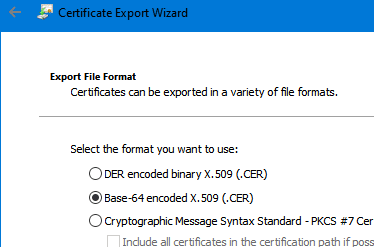
If you are importing PFX, it is best to do so via the Certificates (Local Computer) → Personal snap-in. Microsoft provides detailed instructions on importing and assigning a site certificate in its official documentation.
After Complete Certificate Request, the new certificate will appear in the list:

Go to Sites, select the site → Edit Bindings…

Add a binding:

Restart the website (or the entire IIS).

Check in your browser: the lock and valid certificate for the domain.

It is useful to enable HTTP → HTTPS redirection (URL Rewrite) right away — there is a separate analysis in winitpro.
Don’t forget to open 80/443 in the internal Windows firewall and the external firewall/ACL at the Windows VPS provider:
					New-NetFirewallRule -DisplayName "HTTP (80)"  -Direction Inbound -Protocol TCP -LocalPort 80  -Action Allow
New-NetFirewallRule -DisplayName "HTTPS (443)" -Direction Inbound -Protocol TCP -LocalPort 443 -Action Allow
Verification from the client machine:
					Test-NetConnection example.ru -Port 80
Test-NetConnection example.ru -Port 443
TcpTestSucceeded: True — binding and availability confirmed.
					# 1) Installing IIS with basic modules
Install-WindowsFeature Web-Server, Web-Common-Http, Web-Default-Doc, Web-Http-Errors, `
  Web-Http-Logging, Web-Filtering, Web-Stat-Compression -IncludeManagementTools
# 2) Site catalog
New-Item -ItemType Directory -Path "D:sitesexample.ruwwwroot" -Force | Out-Null
# 3) Website on HTTP
Import-Module WebAdministration
New-Website -Name "example.ru" -Port 80 -PhysicalPath "D:sitesexample.ruwwwroot" -IPAddress "*" -HostHeader "example.ru"
# 4) Import certificate (example for PFX; specify your path/password)
# $pwd = ConvertTo-SecureString "PFXpassword" -AsPlainText -Force
# Import-PfxCertificate -FilePath "C:certsexample.pfx" -CertStoreLocation Cert:LocalMachineMy -Password $pwd
# $thumb = (Get-ChildItem Cert:LocalMachineMy | Where-Object {$_.Subject -like "*CN=example.ru*"}).Thumbprint
# 5) HTTPS binding (via netsh http)
# New-WebBinding -Name "example.ru" -Protocol https -Port 443 -HostHeader "example.ru"
# netsh http add sslcert hostnameport=example.ru:443 certhash=$thumb appid="{00112233-4455-6677-8899-AABBCCDDEEFF}"
# 6) Firewall
New-NetFirewallRule -DisplayName "HTTP (80)"  -Direction Inbound -Protocol TCP -LocalPort 80  -Action Allow
New-NetFirewallRule -DisplayName "HTTPS (443)" -Direction Inbound -Protocol TCP -LocalPort 443 -Action Allow

