Notice

: Function WP_Styles::add was called incorrectly. The style with the handle "hello-elementor-child-style" was enqueued with dependencies that are not registered: hello-elementor-theme-style. Please see Debugging in WordPress for more information. (This message was added in version 6.9.1.) in /home/csrkub/domains/cube-vps.com/public_html/wp-includes/functions.php on line 6131

Notice: Function WP_Scripts::add was called incorrectly. The script with the handle "gpress-custom-js" was enqueued with dependencies that are not registered: gpress-siema. Please see Debugging in WordPress for more information. (This message was added in version 6.9.1.) in /home/csrkub/domains/cube-vps.com/public_html/wp-includes/functions.php on line 6131

*Cube-Host– full cloud services!!
How to install and configure LAMP on Linux VPS

How to install and configure LAMP on Linux VPS

Preparation

  • VPS with Ubuntu 20.04/22.04/24.04 or Debian 11/12.
  • User with sudo, SSH access.
  • Domain (optional) and open port 80/443 in the provider’s panel.

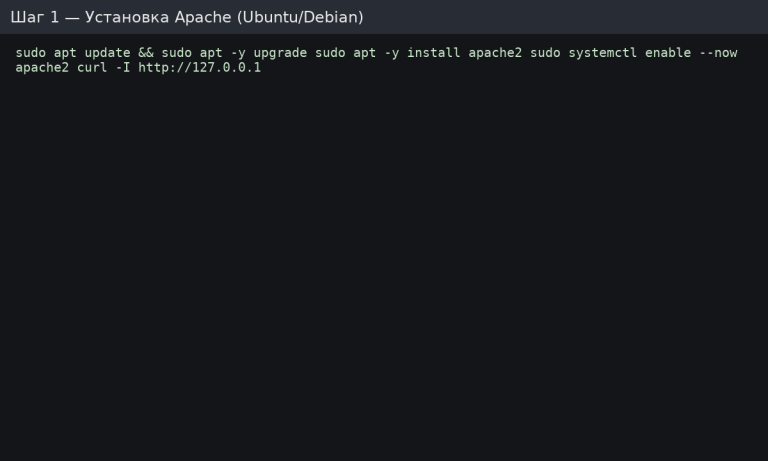
Apache: installation, autostart, and verification


Linux vps

Expecting HTTP/1.1 200 OK headers. The default page is located in /var/www/html/.
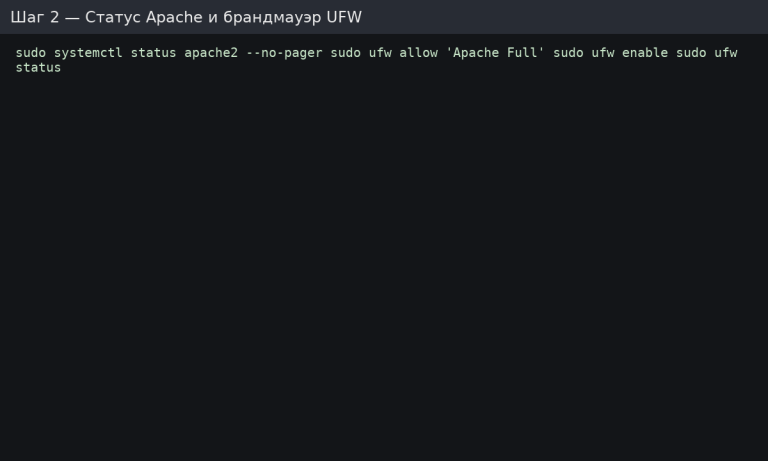
UFW firewall for HTTP/HTTPS and service status


Linux vps

If you are not using UFW, ensure that 80/443 are allowed in your provider’s cloud firewall.

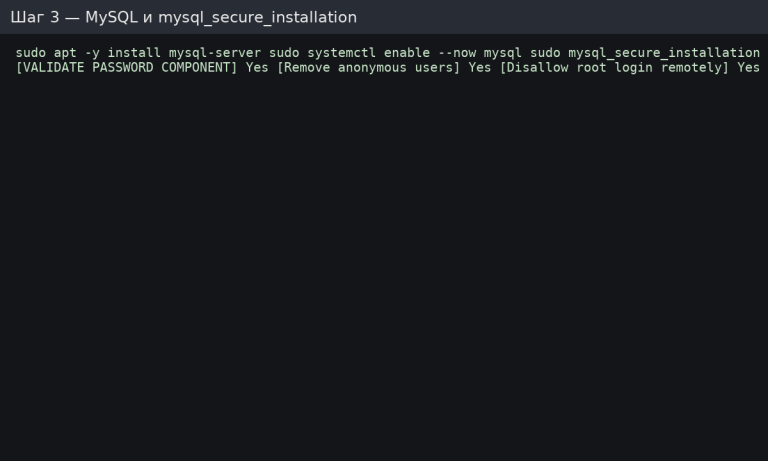
MySQL Server: installation and basic protection


Respond securely:

  • Enable password strength checking (Yes).
  • Remove anonymous users (Yes).
  • Disallow remote root login (Yes).
  • Remove test database (Yes).
  • Reload privileges (Yes).

Linux vps

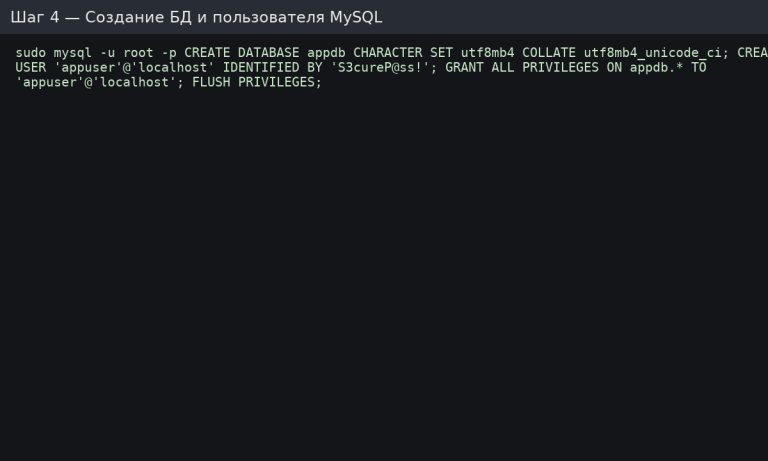
Creating a database and user for the application


In the MySQL console:


Linux vps

For remote access, specify the host: “appuser”@‘%’ and configure the bind-address/firewall in isolation.

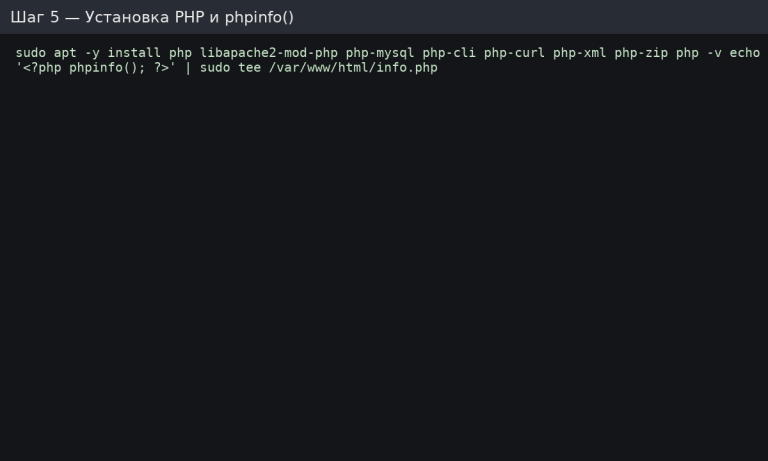
PHP: module installation and test page


Open http://<IP>/info.php in your browser to see the phpinfo() page (then delete it).
Linux vps

Production directory and Apache virtual host

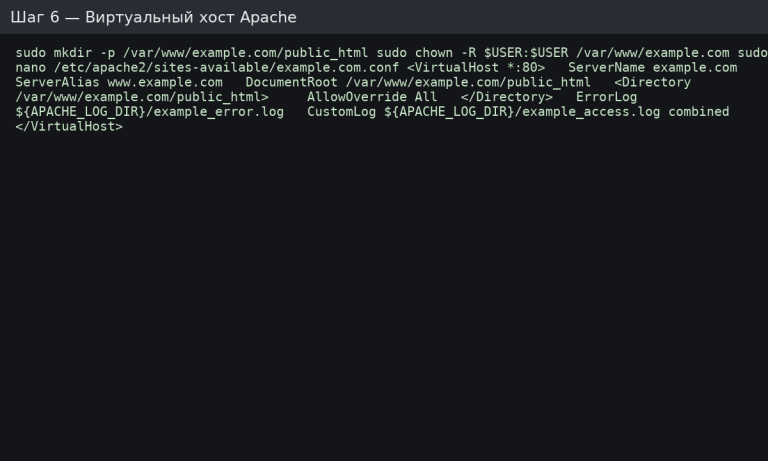
Let’s create the site structure and configuration file:


Create the configuration file /etc/apache2/sites-available/example.com.conf:


Linux vps

AllowOverride All is needed if you use .htaccess (rewrites, caching, etc.).
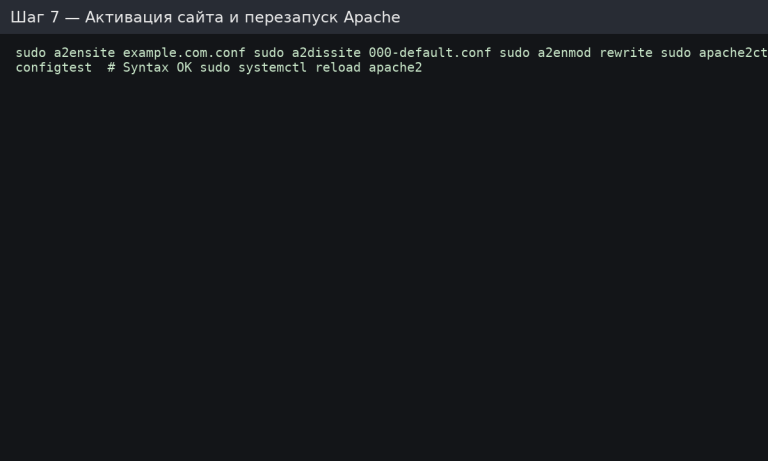
Activate the site, mod_rewrite, and reread the config.


Linux vps

Check the website by domain or IP: Hello from LAMP! should open.

Checking the PHP ↔ MySQL (PDO) connection

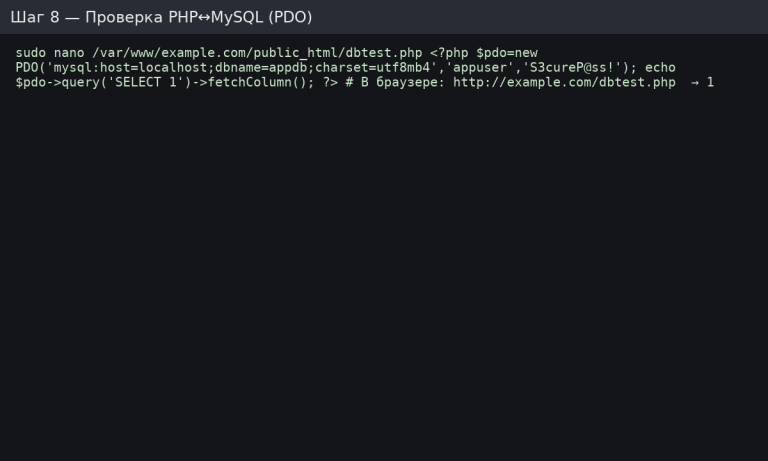
Create /var/www/example.com/public_html/dbtest.php:


Open http://example.com/dbtest.php → you will see 1.
Linux vps

HTTPS in 2 minutes (bonus)

If the domain points to the server, we install a free certificate:


Certbot will automatically enable HTTPS and auto-renewal.

Configuring PHP for production (briefly)

Edit /etc/php/*/apache2/php.ini:

  • expose_php = Off
  • memory_limit = 256M (depending on load)
  • upload_max_filesize and post_max_size according to your CMS
  • date.timezone = Europe/Kyiv
  • Restart Apache: sudo systemctl reload apache2.

Analogues for AlmaLinux/Rocky/CentOS (RHEL)


LAMP startup checklist

  • Apache is running, 80/443 are open, mod_rewrite is enabled.
  • MySQL is secured, appdb and appuser are created.
  • PHP is installed with necessary modules, info.php is removed.
  • Virtual host is enabled, AllowOverride All is set.
  • dbtest.php returns 1 (PDO works).
  • HTTPS is enabled (if there is a domain), cron/auto-renew is active.

Table of Contents


Prev