

*Cube-Host– full cloud services!!
: Function WP_Styles::add was called incorrectly. The style with the handle "hello-elementor-child-style" was enqueued with dependencies that are not registered: hello-elementor-theme-style. Please see Debugging in WordPress for more information. (This message was added in version 6.9.1.) in /home/csrkub/domains/cube-vps.com/public_html/wp-includes/functions.php on line 6131
Notice: Function WP_Scripts::add was called incorrectly. The script with the handle "gpress-custom-js" was enqueued with dependencies that are not registered: gpress-siema. Please see Debugging in WordPress for more information. (This message was added in version 6.9.1.) in /home/csrkub/domains/cube-vps.com/public_html/wp-includes/functions.php on line 6131
*Cube-Host– full cloud services!!

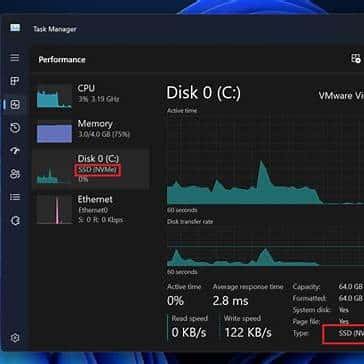
1. Open Task Manager → Performance and view the load on CPU, Memory, Disk, Ethernet. For a quick disk check, focus on “Active time” and “Average response time.”
2. Run perfmon.msc → Performance Monitor → + and add the basic counters:

Disk Cleanup (cleanmgr): Explorer → C: drive → Properties → Disk Cleanup → Clean up system files. Select Windows Update Cleanup, temporary files, recycle bin, and WER.

Autostart:
In Windows Server 2019/2022, enable Storage Sense to automatically clean up Temp/Downloads/Recycle Bin on a schedule.
Install DiskSpd and run the test (example — 40% write, 60% read; 64K block; 8 threads; 32 queue; 180 sec):
See IOPS, AvgLat (ms), and MiB/s; stable disk latency in prod — <10–25 ms if possible.

If disk graphs are not visible in Task Manager on older systems: run diskperf -y and restart Task Manager.
On a number of configurations, disabling some offload functions and carefully configuring TCP helps:
After each step, measure using PerfMon/iperf/SMB copying to avoid “fixing one thing and breaking another.”
To prevent the scanner from throttling I/O (SQL, log folders, caches), add exceptions in Microsoft Defender:
Parameters and commands — in the official Defender documentation.
Keep 15–20% of RAM free for the file cache. Pagefile — “System-selected” or fixed (min=RAM, max≈1.5×RAM, if full crash dumps are needed).
Check for SSD/HDD predictive errors:
If you see media degradation, plan your migration before an incident occurs.

